
1. Overview
The Snapsight Operator is an AI-powered session capture assistant that autonomously monitors event sessions, detects session start and end cues in real time, and generates live transcriptions and insights - without requiring manual intervention.
Each event location is assigned its own dedicated Operator instance. Once deployed, the Operator manages session transitions automatically, enabling your team to focus on event delivery rather than manual capture management.
How the Operator Works
| State | Description |
|---|---|
| Mute (Standby) | Operator is deployed and active, but not listening or transcribing. This is the default state between sessions. |
| Pre-Session Listening | Approximately 8 minutes before a scheduled session, the Operator unmutes and begins listening for session cues - no transcription is generated at this stage. |
| Active Capture | Once opening remarks are detected (e.g., speaker introductions, audience welcome), the Operator begins full session capture and generates live transcriptions. |
| Session End | Upon detecting closing remarks, the Operator stops capturing and returns to Mute (Standby) state until the next session. |
2. Setup Requirements
Before launching the Operator, ensure the following equipment and conditions are in place for every session location.
2.1 Dedicated Laptop
-
- Stable internet connection (Wi-Fi or LAN)
- Continuous power supply
- Google Chrome (recommended) or another modern browser
2.2 Audio Feed from AV Mixer
A direct audio feed from the venue's AV mixer is mandatory. This ensures clean, high-quality stage audio. The following audio interfaces are compatible:
-
- Focusrite Scarlett
- iRig 2
- USB audio interface
- Any compatible AV audio adapter
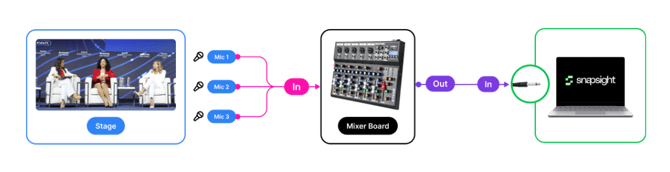
⚠️ Important: Do not use the laptop's built-in microphone or a webcam microphone. The Operator requires a direct feed from the AV mixer for accurate transcription. Ambient room audio will result in poor or failed capture.
3. Operator Setup Instructions
Complete the following steps in sequence at each session location before the event begins.
Step 1 - Connect Audio Feed to Laptop
Obtain the audio output from the venue's AV mixer - this is the same feed used for recording or streaming. Connect it to the laptop via an audio interface or USB adapter as follows:
-
- Connect the audio interface to the AV mixer output.
- Plug the audio interface into the laptop via USB.
- Ensure the cable and connections are secure.
Step 2 - Open the Operator Link
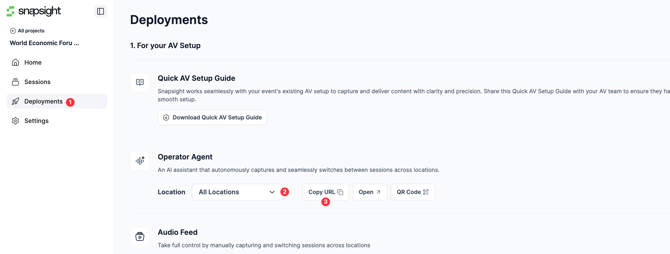
On the dedicated laptop, navigate to the Operator Link. This link can be obtained from:
-
- The event organiser or the Snapsight team, or
- Navigate to Project → Deployments → Operator Agent → Select Location → Open Operator or
-
- The Snapsight account: navigate to Project → Locations → Select Location → Open Operator Link
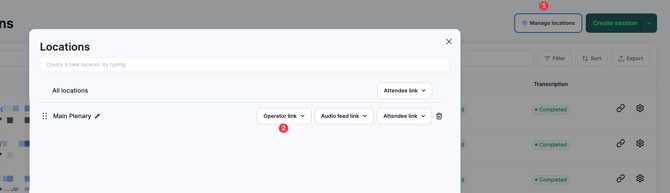
- The Snapsight account: navigate to Project → Locations → Select Location → Open Operator Link
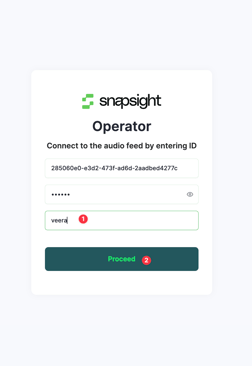
Once on the Operator page:
-
- Enter a name (e.g., Main Stage Laptop).
- Click Proceed
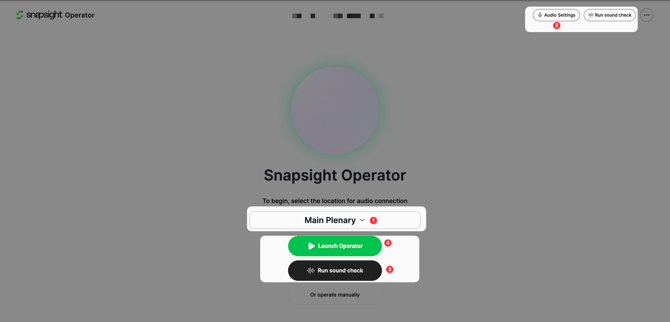
Step 3 - Making sure the it’s right location
-
- If multiple locations are available, select the correct location before launching operator
Step 4 - Select Audio Source
After joining the Operator, configure the audio input:
-
- Click Audio Settings.
- Select the connected audio interface device (e.g., USB Audio Device, Focusrite, iRig 2).
- Confirm the selection.
⚠️ Important: Do not select Built-in Microphone or Webcam Microphone. These inputs will not produce acceptable transcription quality.
Step 5 - Run a Sound Check
Before going live, verify that audio is being captured correctly:
-
- Click Run Sound Check.
- Ask a team member to speak into the stage microphone.
- Confirm that live transcription appears on screen - text should be visible, accurate, and responsive.
Step 6 - Launch the Operator
Once all setup steps are complete and the sound check is confirmed:
-
- Click Launch Operator.
- The Operator will enter Active Mute (Standby) state and will begin autonomous session management.
💡 Note: It is recommended to launch the Operator 1–2 hours before the event begins to allow sufficient time for setup, testing, and any troubleshooting.
4. Troubleshooting
Operator Does Not Join a Session
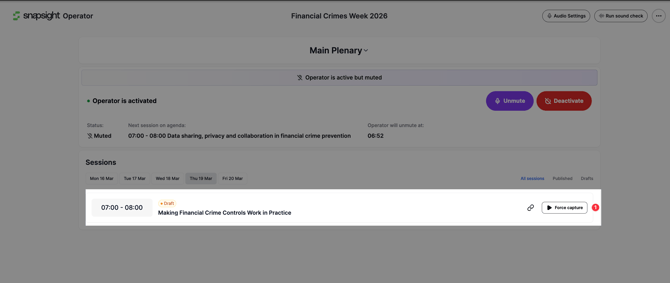
If an Operator fails to automatically join an upcoming session, take the following steps in order:
- From the AV Console Centre, initiate Force Capture for the affected session.
- If Force Capture is not available from the console, proceed to the physical location and trigger capture directly from the Operator interface.
- If the issue persists, contact the Snapsight Customer Success team immediately.
Poor or Absent Transcription
If transcription quality is poor or not appearing, verify the following:
- The correct audio source (AV mixer feed) is selected - not built-in or webcam microphone
- The audio interface is securely connected to both the mixer and the laptop
- The session language configuration matches the spoken language
- Re-run the Sound Check to confirm audio is being received correctly
5. Managing Operators via the AV Console Centre
The AV Console Centre provides a centralised dashboard to monitor and control all Operator instances across all locations from a single interface.
Access the AV Console Centre through the Snapsight project backend. Any team member responsible for managing onsite locations must have access to the relevant Snapsight project account.
Available Console Functions
- View real-time status of all active Operators
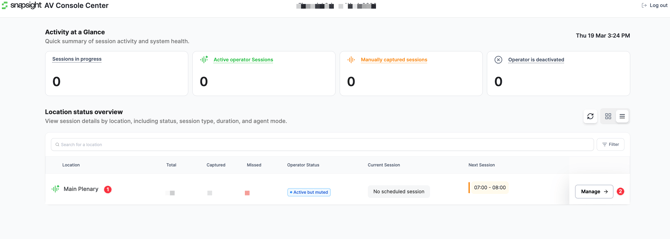
- Manually trigger session capture (Force Capture) if an Operator does not automatically join a session
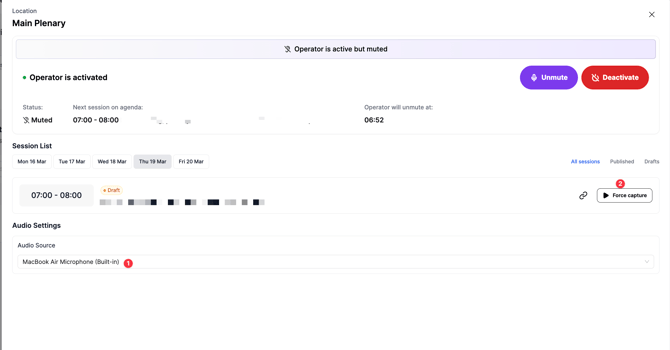
- Switch between location views from a single interface
💡 Note: The Snapsight Customer Success team monitors all Operators remotely during event days and is available to provide real-time support.
6. Pre-Session Checklist
Complete this checklist before each session at every location. All items must be confirmed prior to the event going live.
- Dedicated laptop is powered on and connected to stable internet
- Audio interface is connected to both the AV mixer and the laptop
- Operator Link has been opened in the browser
- Correct location has been selected in the Operator
- Correct audio source (AV mixer / USB audio device) has been selected
- Sound check completed — live transcription confirmed on screen
- Session language verified and matches the speaker's language
- Operator has been launched 1–2 hours before the event
- AV Console Centre is open and all Operator statuses are confirmed active
7. Technical Support
For technical support or assistance during the event, contact the Snapsight Customer Success team: cs@snapsight.com
The Customer Success team is available during all event days for remote monitoring and real-time support.