
The Snapsight Operator records every session in a room. It runs in any browser on a laptop in the room, takes the room audio from the mixer, and captures each session for you. One Operator link works for every room: you pick the room when you launch it.
Two ways the Operator works
- Automatic (default): the Operator is an AI agent. It listens for cues, uses the opening and closing remarks to joins and leaves sessions on its own. You press nothing.
- Manual (any time): tap the play icon next to a session to start recording it, and the stop icon to stop and save it.
Step 1: Connect the room audio
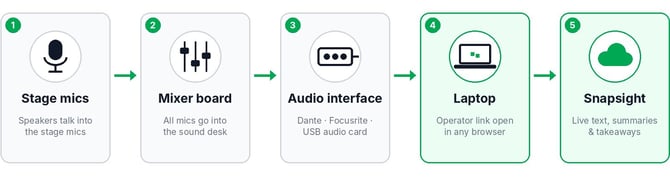
- Stage mics go into the mixer board.
- Take an output from the mixer (REC / AUX out) into an audio interface such as Dante, Focusrite or a USB audio card.
- Connect the audio interface to the laptop and open the Operator link in any browser.
Step 2: Get the Operator link
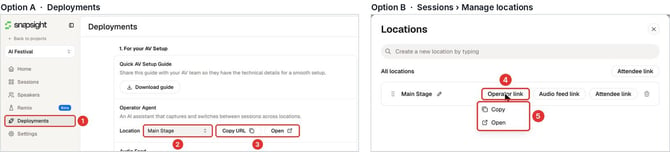
- Option A: in your project, open Deployments.
- Under Operator Agent, choose a Location. All Locations gives one link for every room.
- Click Copy URL to send the link to the room laptop, or Open to launch it.
- Option B: go to Sessions > Manage locations and click Operator link next to the room.
- Choose Copy or Open.
Note: The Location ID and Passcode fill in automatically when you open the link.
Important: Keep the stage-mic channels unmuted to the REC / AUX out all day. If you have several rooms, set up a laptop in each room. One Operator link works for every room: open the same link on each laptop and pick the room when you launch it.
Step 3: Run the 4-step setup (about one minute)
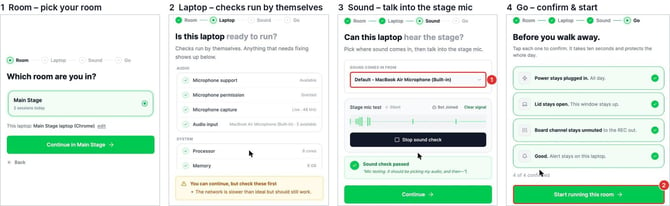
On Room, pick the room this laptop is in and click Continue. On Laptop, click Continue; the checks run by themselves.
- In Sound comes in from, select the external audio interface connected to the laptop (for example Focusrite, Dante or a USB audio card), then talk into the stage mic until you see "Sound check passed".
- On Go, tap the four checks, then click Start running this room.
Important: Don't use the laptop's built-in microphone onsite.
Step 4: Leave it on automatic
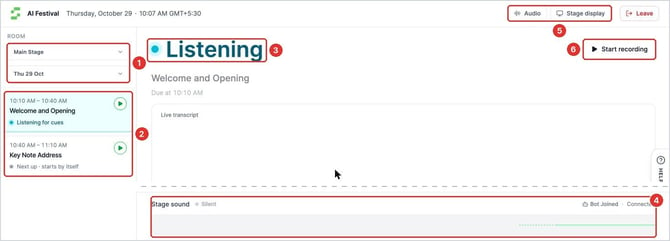
- Room and day.
- Today's sessions with their status: Starts by itself, Listening for cues, Recording now, Recorded.
- Room status: Ready (next session coming up), Listening (waiting for the opening remarks), Recording.
- Stage sound: the bars move when audio is coming in.
- Audio changes the input device. Stage display is for presenting Keytakeaways, Idea Cloud, Live Text (presentation, widget and overlay) on screen.
- Start recording: a manual override for the current session.
Tip: Green means it is working. If the Operator needs you, the screen turns amber or red and tells you what to do.
Step 5: Capture a session manually
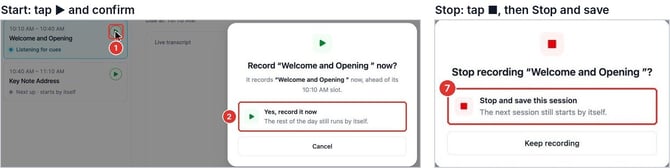
- Tap the play icon next to the session.
- Choose Yes, record it now. It records right away, even ahead of its slot.
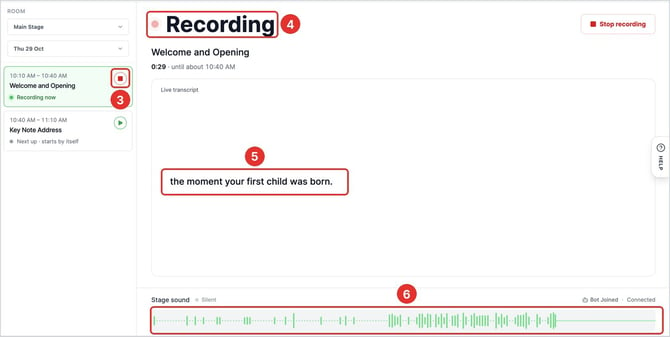
- While recording, the session shows Recording now and its icon becomes a stop icon.
- The status reads Recording.
- Live text appears as people speak.
- The Stage sound bars move. This is how you know it's capturing.
- To stop, tap the stop icon and choose Stop and save this session. The session shows Recorded, and the next session still starts by itself.
Before you walk away
- Power stays plugged in all day.
- Laptop lid stays open and the Operator window stays up.
- Mixer channel stays unmuted to the REC / AUX out.
- Alerts play on the laptop only, not the hall speakers.