
In today's ever-changing world of meetings and events, the importance of capturing real-time insights has never been higher. Snapsight Takeaways provides a robust solution, effortlessly integrating with both in-person and virtual sessions to deliver attendees instant access to valuable insights. This guide will lead you through the simple setup process for Snapsight Takeaways at both in-person and virtual events, guaranteeing a seamless and productive experience for organizers and participants alike.
Understanding the Setup
Before we delve into the technical details, let's grasp the essentials of setting up Snapsight Takeaways for Snapsight sessions. The setup involves connecting Snapsight directly to the audio-visual (AV) equipment of the meeting or conference room, allowing real-time capture and dissemination of insights.
Required Equipment
To embark on this journey, you'll need to ensure the availability of the following equipment:
- Presenter Device: A laptop computer with Wi-Fi connectivity acts as the Presenter Device, serving as the hub for running Snapsight Takeaways. This device will be operated by the audio-visual technician.
- Internet Connectivity: Attendees require internet connectivity to access Real-time Takeaways from their personal devices.
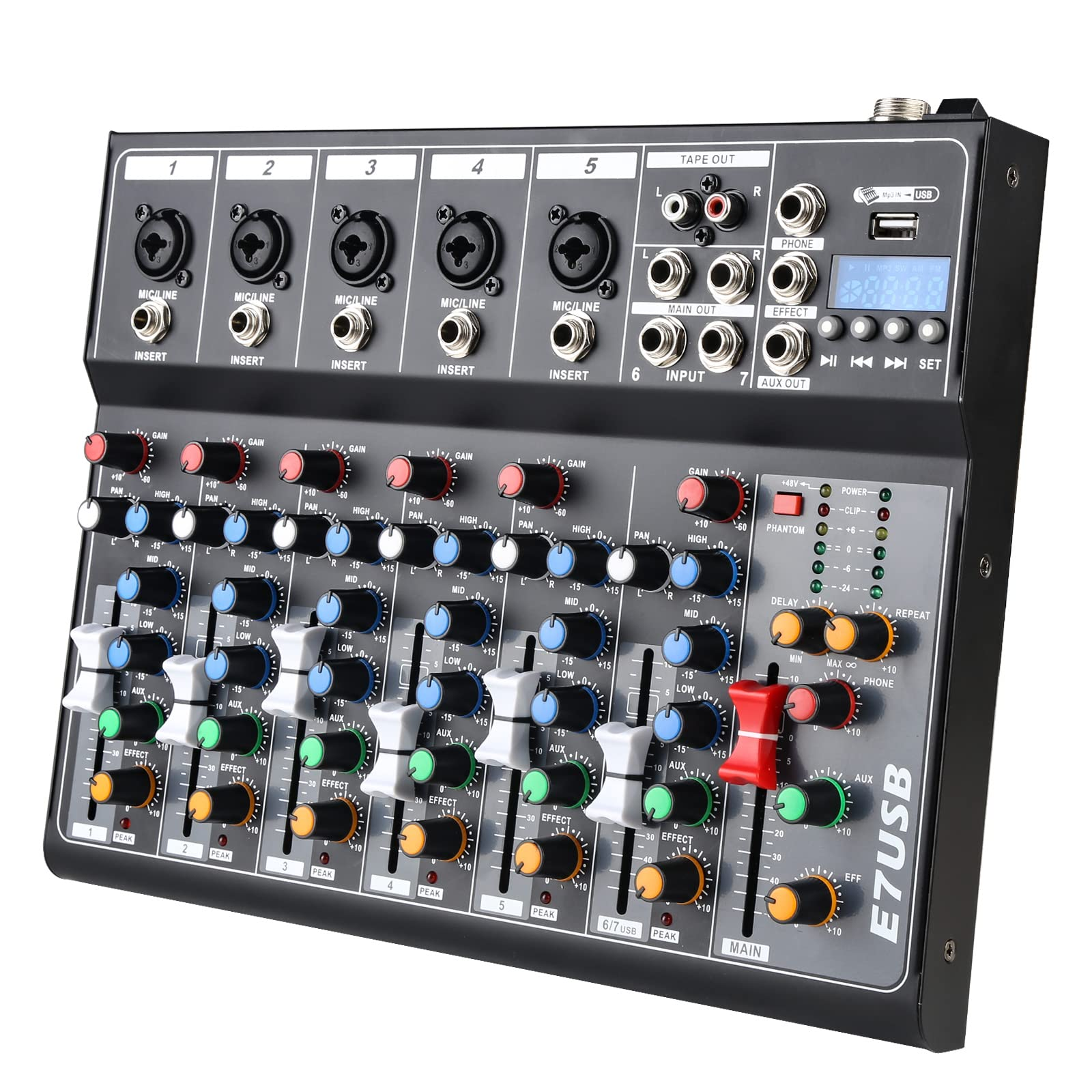
- Audio Mixer Board or System: An audio mixer board with an AUX output or headphone jack serves as the interface for audio input.
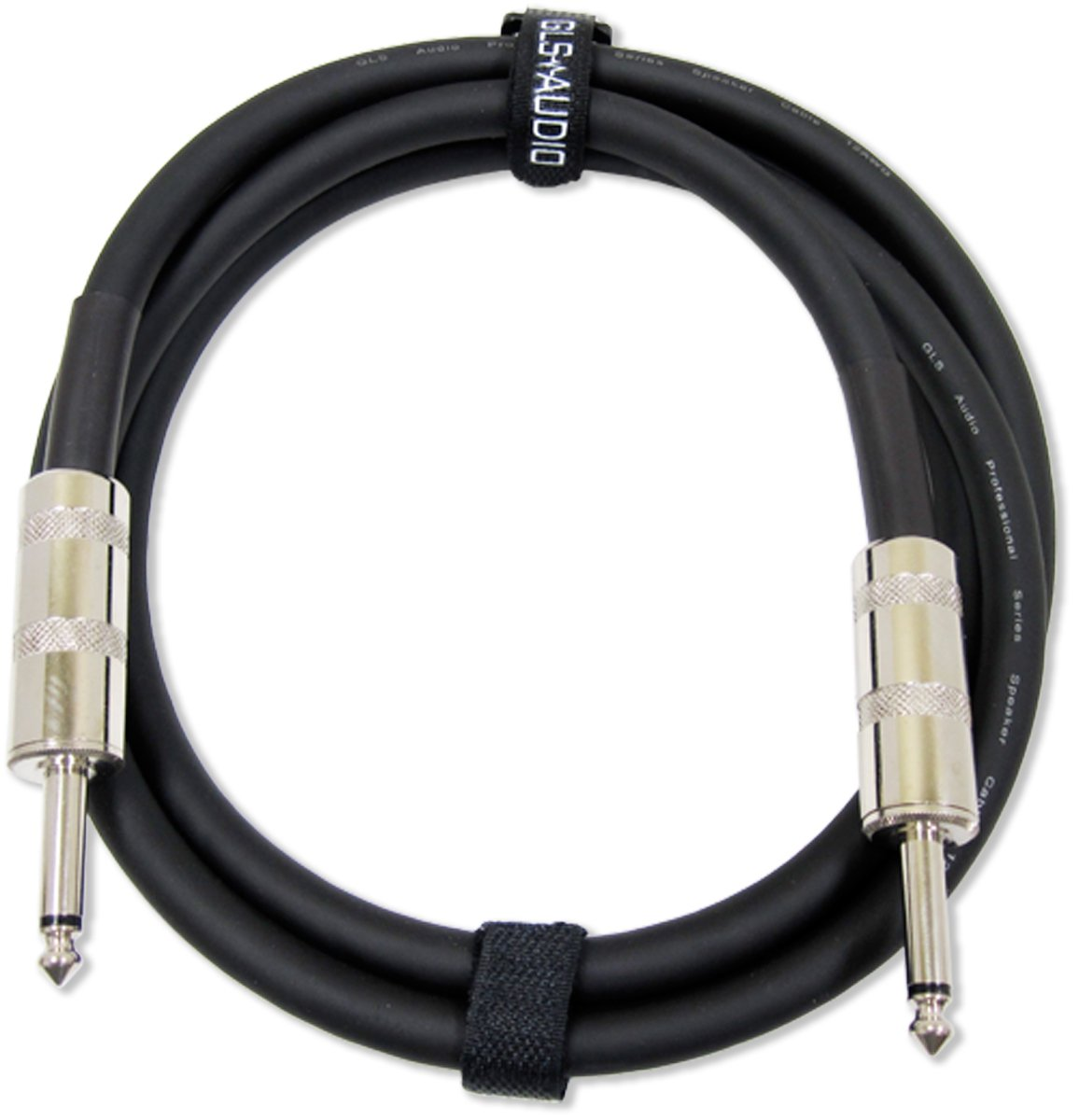
- Speaker Cable: A speaker cable compatible with the audio mixer's output port, terminating in a ¼-inch male connector, is essential for audio transmission.
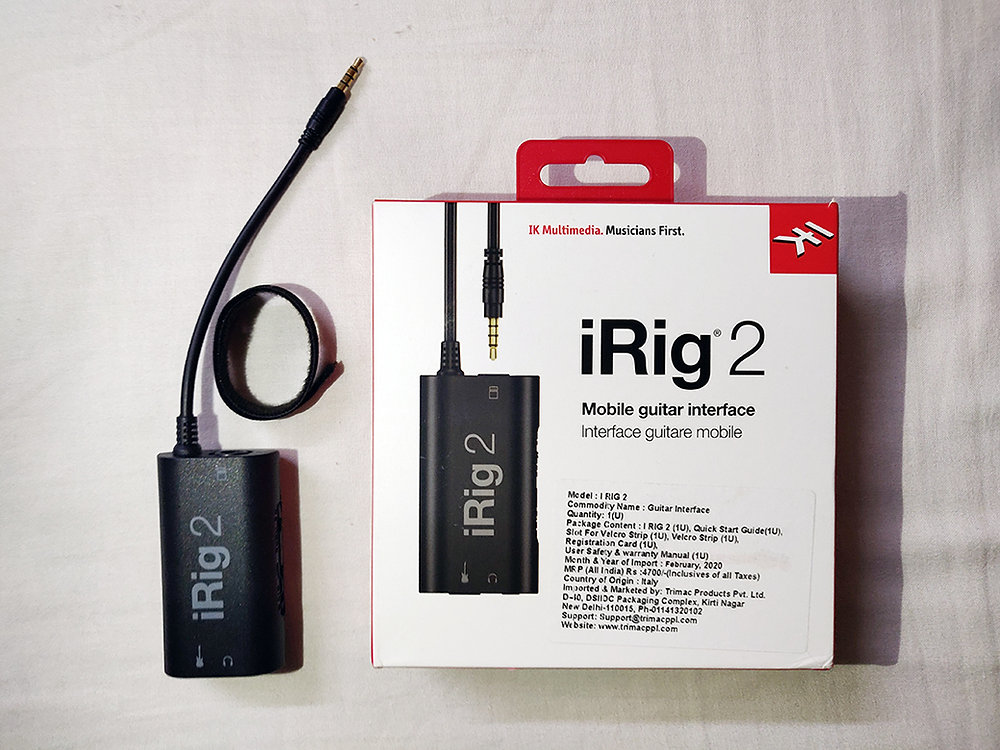
- Audio Interface Adapter for Laptop: If the laptop lacks a dedicated audio input port, an audio interface adapter such as the iRig 2 is necessary for seamless integration.
Setting Up the Environment
Now that we've gathered the necessary equipment, let's proceed with the setup:
- Create a Session in the Snapsight Portal: Begin by creating a session in the SnapsightPortal. While an account is required to create the session, the AV technician only needs the session-specific passcode to run the session. The technician is not obligated to have an account or create the session themselves.
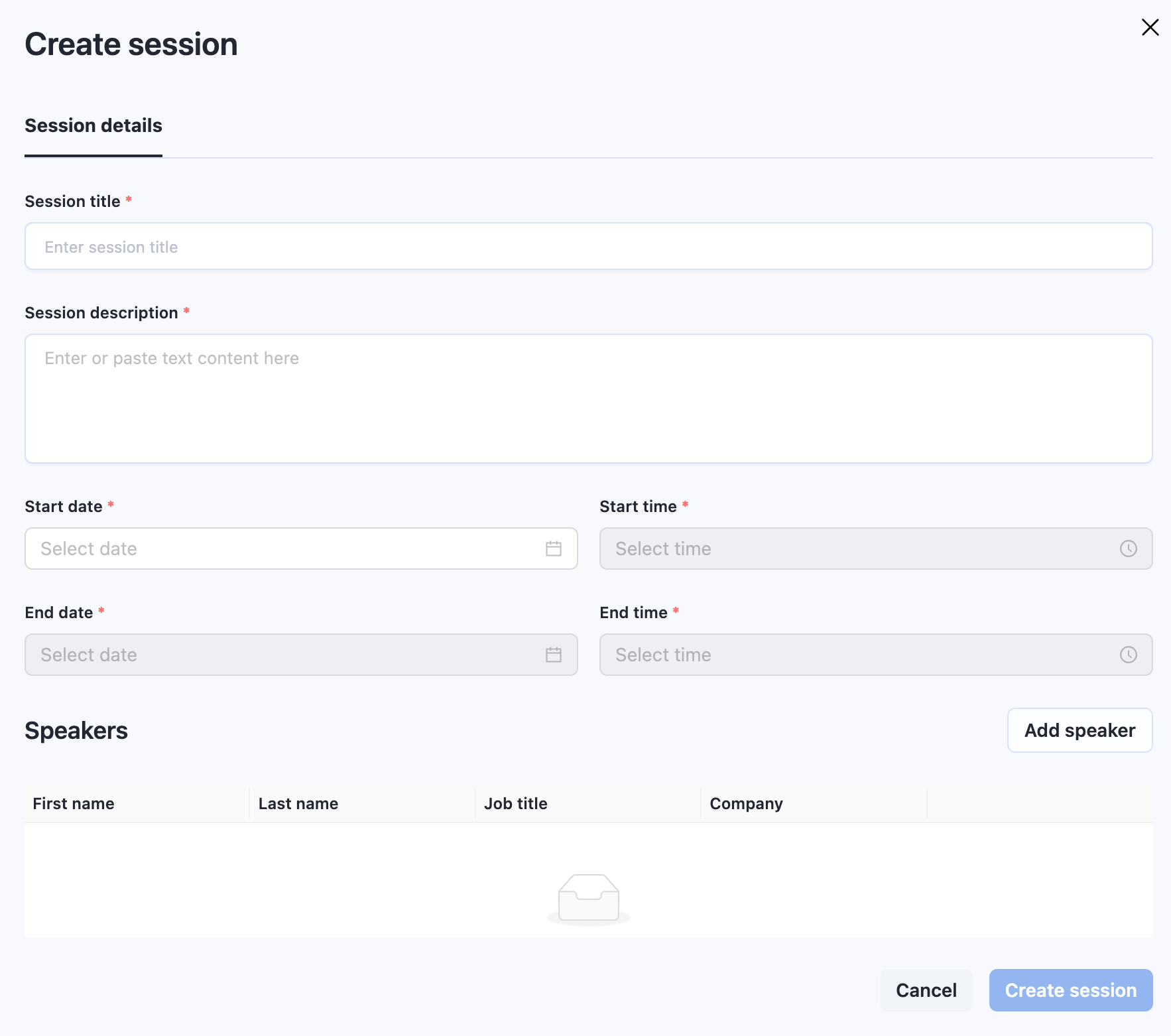
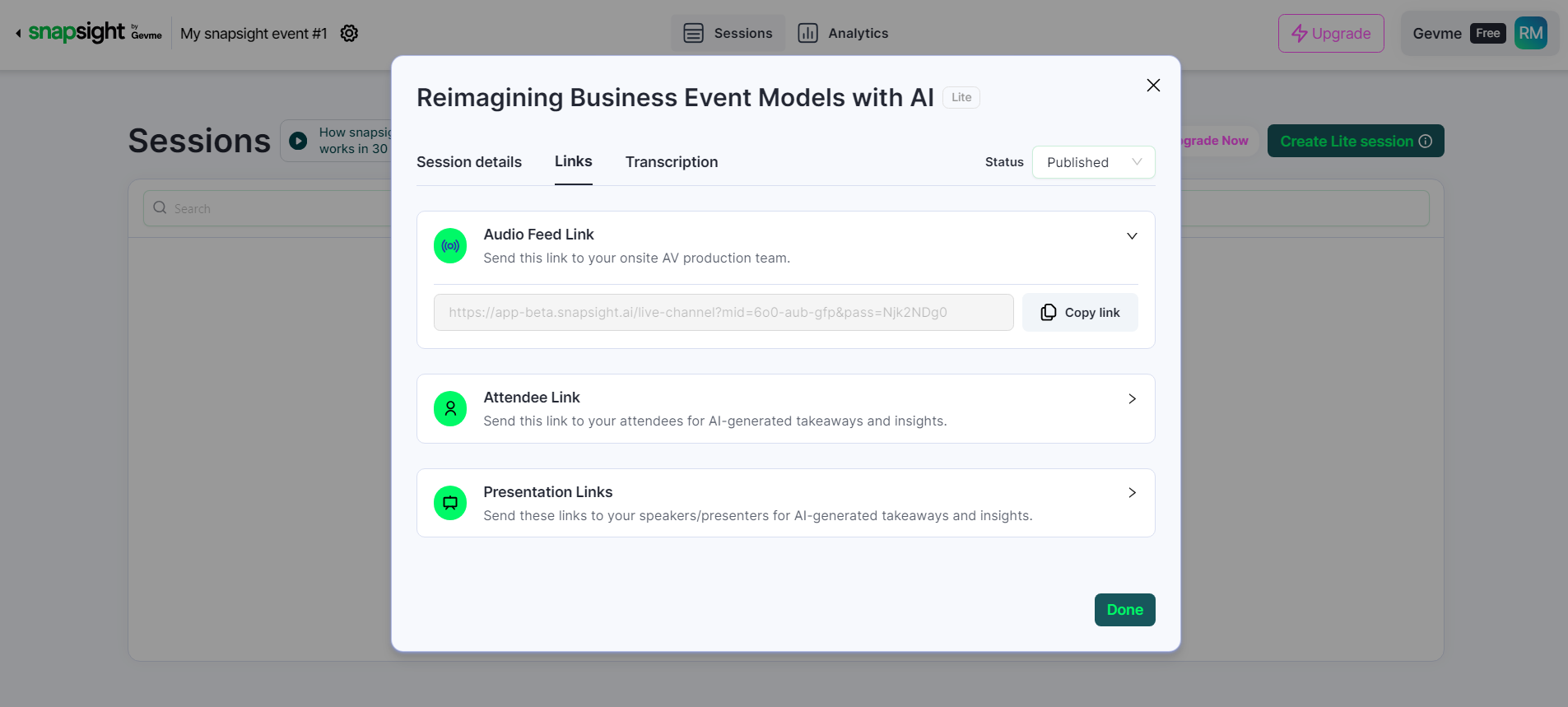
- Locate the Real-time Takeaways Session Audio Feed Link: The session-specific audio feed link can be found in the within created Snapsight Session. This link is crucial for establishing the connection between Snapsight and the AV equipment.
Configuring the AV Setup
With the equipment and session details in place, it's time to configure the AV setup:
- Connect Presenter Device to AV Equipment: Use the presenter device (laptop) to establish a connection with the AV equipment. Utilize the appropriate cables and adapters to connect the laptop to the audio mixer board or system.
- Ensure Internet Connectivity: Verify that attendees have access to internet connectivity to seamlessly access Real-time Takeaways from their personal devices.
Conclusion
In conclusion, setting up Snapsight Takeaways for in-person sessions offers a transformative approach to capturing and disseminating real-time insights. By leveraging the right equipment and configuration, organizers can enhance the attendee experience and maximize the value derived from meetings and events. Whether you're hosting a conference, seminar, or corporate meeting, Snapsight Takeaways provides a powerful platform for unlocking actionable insights in real-time.
Embark on your journey towards real-time insights with Snapsight Takeaways today, and elevate the impact of your in-person and virtual sessions like never before.