
Available Features
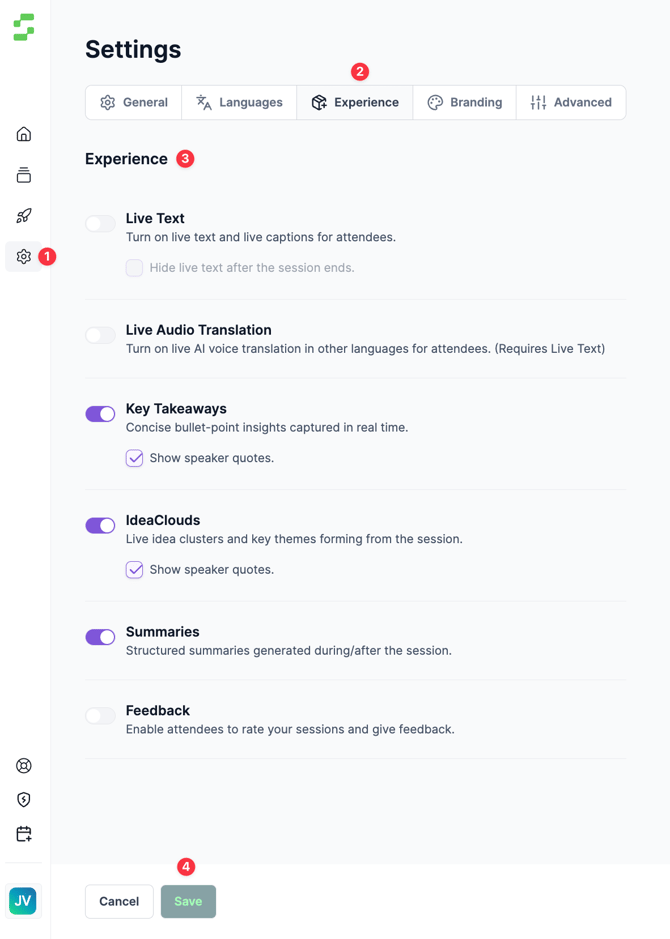
1. Live Text
- Enables live captions and real-time transcription for attendees
- We can also hide live text after the session ends
2. Live Audio
- Provides live AI voice translation in multiple languages for attendees
- Note: Requires Live Text to be enabled
3. Key Takeaways
- Captures concise, bullet-point insights in real time as the session progresses
- Optional setting: Show speaker quotes - attributes specific quotes to individual speakers
4. Idea Cloud
- Displays live idea clusters and key themes as they emerge from the session
- Optional setting: Show speaker quotes - attributes specific quotes to individual speakers
5. Summary
- Generates structured summaries after the session for easy reference
6. Feedback
- Allows attendees to rate sessions and provide valuable feedback
- Rate Session Speaker
- Rate Session Content
- Open ended text feedback
Step-by-Step Setup Guide
1. Access Project Settings
- Navigate to the left side panel and click the gear icon to open Project Settings
2. Locate the Experience Section
- Within Project Settings, find and click on the Experience section
3. Configure Features
- Toggle each feature on or off based on your event requirements
- Enable optional settings (such as speaker quotes or hiding live text) as needed
4. Save Your Settings
- Click the Save button to apply your configurations
Need assistance? If you encounter any difficulties or have specific requirements for these features, contact our support team at cs@snapsight.com