
Snapsight supports three types of sessions:
- In-Person – Physical events with AV setup
- Online – Webinars or online meetings
- On-Demand – Upload audio, video, or transcripts
This article explains how to create and import In-Person sessions.
Create an In-Person Session (Manual)
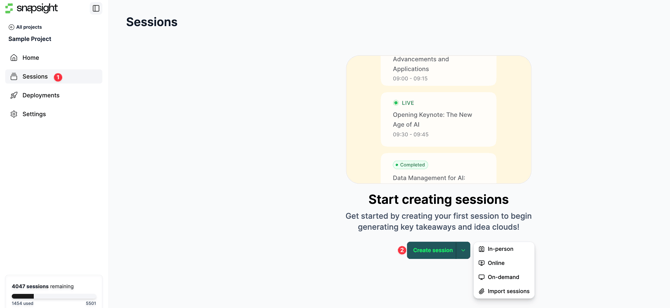
Step 1: Go to Sessions
- From the left navigation bar, click Sessions.
- Click Create Session.
Step 2: Enter session details
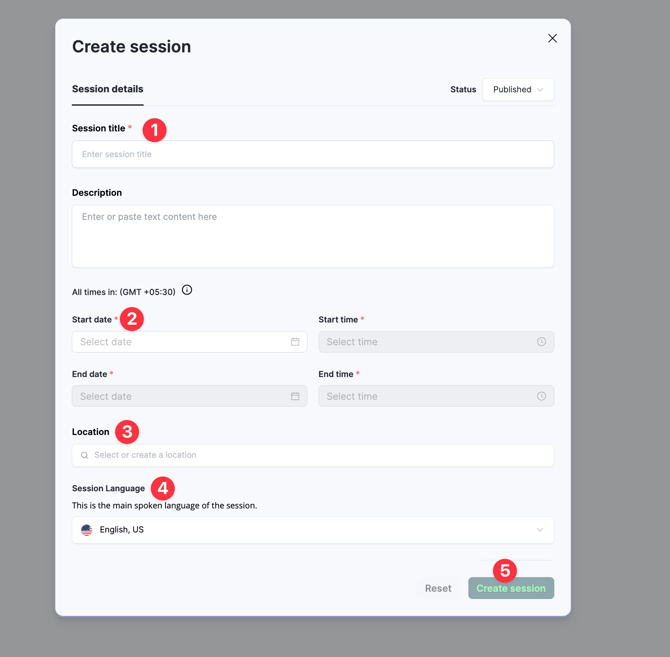
- A pop-up form will appear with required fields.
- Enter all necessary session details (e.g., title, date/time, location, speakers, etc.).
Step 3: Create the session
- Click Create Session.
- The session will be created and listed under Sessions.
Import In-Person Sessions (Bulk)
Step 1: Open Import option
- From the left navigation bar, click Sessions.
- Click the dropdown arrow next to Create Session.
- Select Import Sessions.
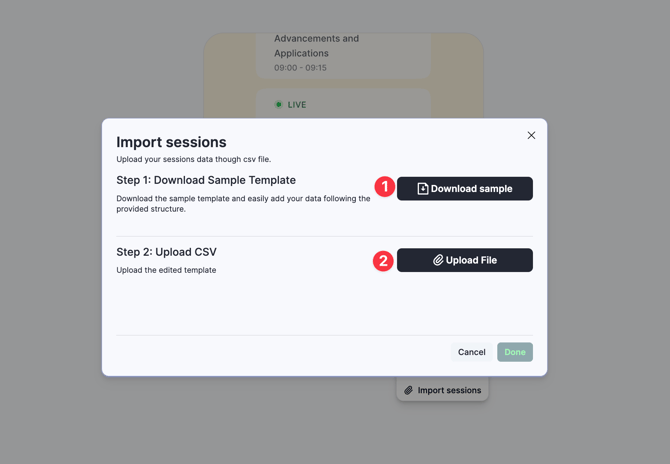
Step 2: Download the sample template
- In the import pop-up, click Download Sample.
- Use this template to format your session data correctly.
Step 3: Upload your CSV file
- Update the template with your session details.
- Upload the CSV file in the same pop-up.
Step 4: Complete import
- Once a correctly formatted CSV is uploaded, all sessions will be created automatically.
NOTE : During the manual creation or after import, if you want to hide any session(s), you can do that by setting the session status to draft.
Need Help?
If you encounter any issues while importing sessions, contact the Customer Success team at cs@snapsight.com.