
If your event is hosted virtually, you can create an Online Session in Snapsight. An AI agent will automatically join the meeting, capture audio, and generate session insights such as Key Takeaways and Summary.
Supported Meeting Platforms
- Google Meet
- Microsoft Teams
- Webex
- Zoom
Create an Online Session
Step 1: Go to Sessions
- From the left navigation bar, click Sessions.
- Click the dropdown arrow next to Create Session.
- Select Online Session.
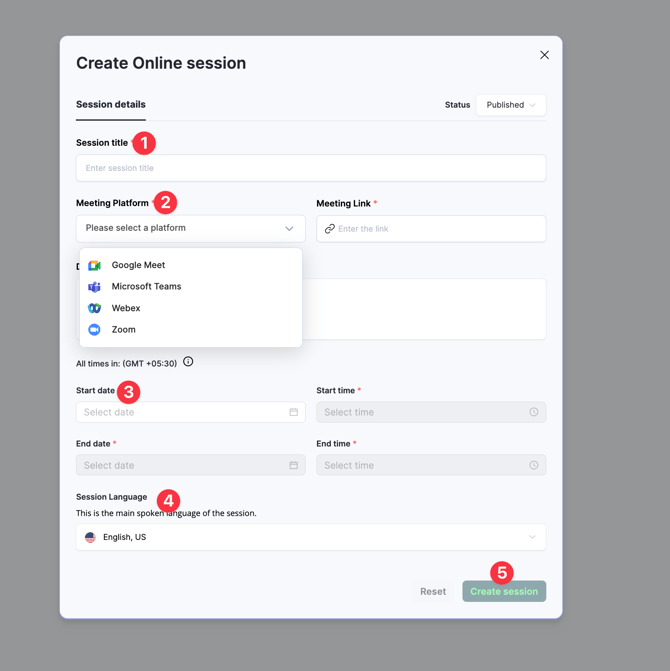
Step 2: Enter session details
- A pop-up form will appear.
- Fill in all required session details, including:
- Session title
- Date and time
- Meeting platform (Google Meet / Teams / Webex / Zoom)
- Meeting link
Step 3: Create the session
- Click Create Session (bottom-right of the pop-up).
- The online session will be created and listed under Sessions.
What happens during the session?
At the scheduled session time, the Snapsight AI Agent will automatically attempt to join the meeting using the provided link to capture audio and generate insights.
Note: The AI agent must be admitted to the meeting by the host or organizer at the start time.