
Use On-Demand Sessions to generate insights from existing session content such as audio, video, or transcript files. Snapsight will process the uploaded file and generate Key Takeaways, Idea Cloud, and Summary.
Create an On-Demand Session
Step 1: Go to Sessions
- From the left navigation bar, click Sessions.
- Click the dropdown arrow next to Create Session.
- Select On-Demand Session.
Step 2: Enter session details
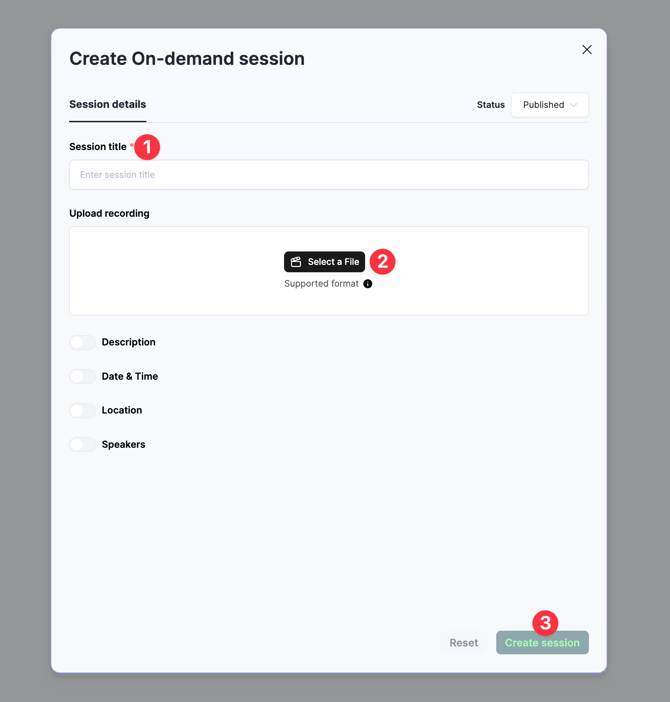
A pop-up form will appear. Provide the required information:
- Title
- Upload Recording / File
Supported file types and limits
Audio (Max 2 GB)
.3ga, .8svx, .aac, .ac3, .aif, .aiff, .alac, .amr, .ape, .au, .dss, .flac, .flv, .m4a, .m4b, .m4p, .m4r, .mp3, .mpga, .ogg, .oga, .mogg, .opus, .qcp, .tta, .voc, .wav, .wma, .wv
Video (Max 2 GB)
.webm, .mts, .m2ts, .ts, .mov, .mp2, .mp4, .m4p, .m4v, .mxf
Documents / Transcripts (Max 2 MB)
.srt, .vtt, .txt
Optional details (optional)
You can toggle on and add:
- Description
- Date & Time
- Location
- Speakers
Step 3: Create the session
- After entering details and uploading the file, click Create Session (bottom-right of the pop-up).
- The session will be created and added to your Sessions list.
What happens next?
Once the session is created, Snapsight will process the uploaded file and automatically generate:
- Key Takeaways
- Idea Cloud
- Summary
Processing time depends on file size and duration.