
The Manage Locations feature allows you to create and manage the rooms/venues where sessions take place. Each location has dedicated access links for your AV team and attendees.
- Each location includes:
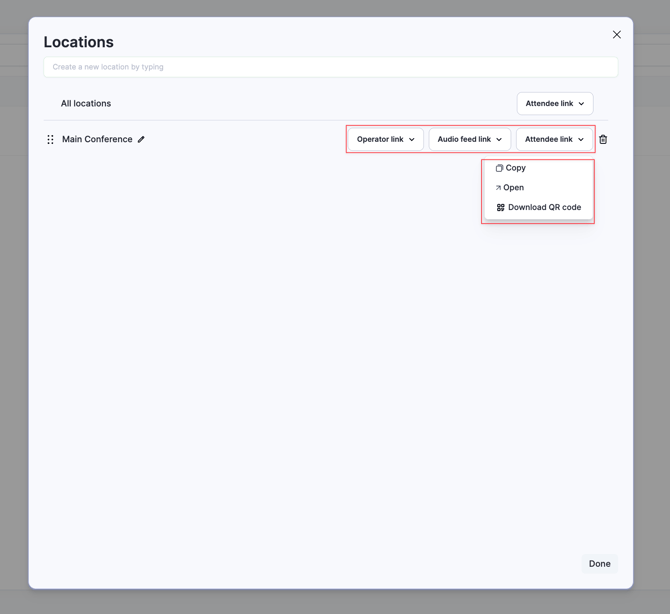
- Operator Link – for deploying the Snapsight operator/agent (captures sessions autonomously)
- Audio Feed Link – for manual audio feed
- Attendee Link (with QR code) – for attendees to view sessions by location
Attendees can also use Location as a filter in the attendee interface to view sessions happening at a specific room or venue.
You can assign these locations while creating or importing sessions.
Create and Manage Locations
Step 1: Open Manage Locations
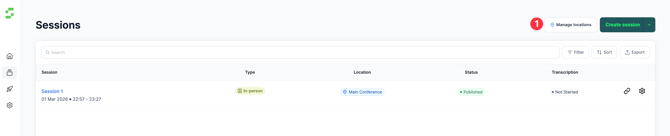
- From the left navigation bar, click Sessions.
- Click Manage Locations (visible before the Create Session button).
Step 2: Create a new location
- In the Locations pop-up, use the search field to type the location name (e.g., Hall A, Room 1, Ballroom, etc.).
- Click Create to add the new location.
Step 3: Access location links
Each created location will have the following links available:
- Operator Link – Share with the AV team to deploy the operator (captures sessions autonomously)
- Audio Feed Link – Share with the AV team to connect the audio feed manually
- Attendee Link (with QR code) – Share with attendees for easy access to sessions at that location
Step 4: Share attendee access link
At the top of the pop-up:
- You will see All Locations – Attendee Link (includes QR code)
- This is the master attendee link that can be shared with participants for accessing all sessions by location.
Notes
- Each location is mapped to its own audio feed and operator setup.
- Make sure to share the correct links with your AV team before the event begins.
- Locations can be assigned to sessions during manual creation or bulk import.
Need Help?
If you need assistance managing locations or setting up audio/operator links, contact the Customer Success team at cs@snapsight.com.