
The Languages feature in Snapsight enables you to customize the language experience for attendees. You can designate the primary spoken language(s) of your event and offer up to 5 translation languages, allowing attendees to view session content in their preferred language. Translation applies to key takeaways, idea clouds, summary and live text.
Step-by-Step Setup Guide
1. Access Project Settings
- After creating your project, locate the gear icon in the left side feature board
- Click the gear icon to open Project Settings
2. Navigate to Languages
- Within Project Settings, find the Languages section
3. Configure Primary Language(s)
- Select your Primary Language - this is the main spoken language of your event
- You can choose up to 3 primary languages if your sessions will feature multiple spoken languages
4. Configure Translation Languages
- Select your Translation Languages - these options will be available to attendees for viewing translated content
- Translation languages apply to key takeaways, idea clouds, summary and live text
- These languages also gets applied to Live Audio
- Choose the languages that best serve your audience's needs
5. Save Your Settings
- Click the Save button to apply your language configuration
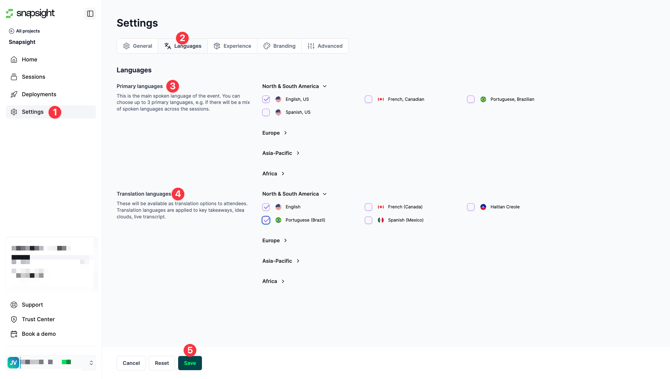
Your language settings are now active and will apply to all sessions within the project.
Need help? Contact our support team at cs@snapsight.com