
Custom Vocabulary helps improve speech-to-text accuracy by allowing you to upload a list of event-specific terms (such as names, acronyms, technical words, or industry phrases) for selected languages in your Snapsight project.
Limitations and guidelines
Before uploading, ensure your vocabulary file meets the following requirements:
- Maximum file size: 50 KB per vocabulary file
- Supported formats:
.csvand.txtonly - Maximum length per phrase: 256 characters
- One file per language: Only one CSV or TXT file can be uploaded for each language
- Language limit: You can upload a maximum of 3 files, based on the number of primary languages selected (up to 3)
You can download sample templates to follow the correct formatting:
- Download: Sample CSV
- Download: Sample TXT
Steps to upload custom vocabulary
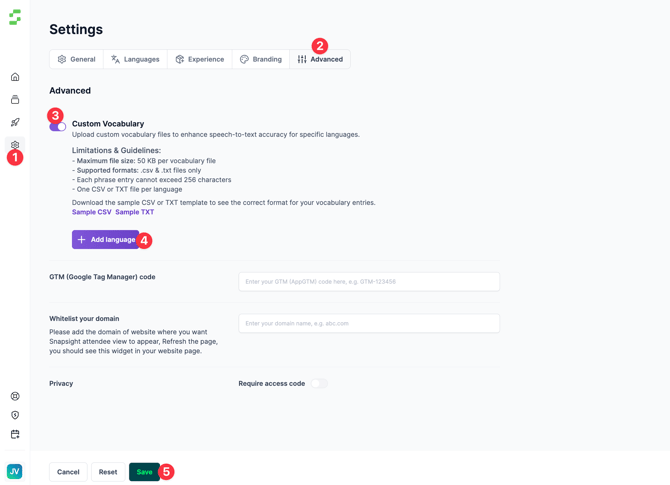
- Open Settings
- From the left navigation bar, click the Gear icon (Settings).
- Go to Advanced
- In Settings, locate the Advanced section.
- Open Custom Vocabulary
- Click Custom Vocabulary to view the feature settings.
- Enable Custom Vocabulary
- Toggle On to display:
- The limitations and guidelines
- Sample templates to download
- The option to add a language and upload a file
- Toggle On to display:
- Add a language
- Click Add Language.
- Select the language you want to upload vocabulary for.
- Upload your vocabulary file
- Upload the corresponding CSV or TXT file for the selected language.
- Save your changes
- Click Save to apply the custom vocabulary configuration.
Need help?
If you face issues uploading your vocabulary file or have specific requirements, please reach out to our Customer Success team at cs@snapsight.com.