
Presentation links can be customized to match your presentation requirements. You can edit their appearance either from the platform or directly from the presentation screen.
Option 1: Edit Directly from the Presentation ScreenYou can also edit presentation settings without returning to the project dashboard.
- Open the presentation link on the presentation display.
- Move your cursor to either:
- the top-left corner, or
- the bottom-right edge of the presentation screen.
- The Edit controls will appear.
- Click the edit option to open the customization panel.
- Update the presentation settings as needed, including text, background, and other available display options.
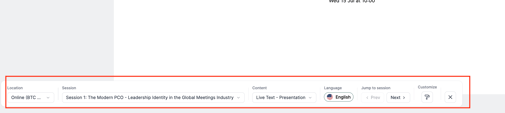
This recently introduced feature allows presenters or AV personnel to make quick presentation adjustments directly from the display screen, making on-site customization faster and more convenient.
Option 2: Edit from Project Settings- Open the project and navigate to the required session or stage.
- Click Settings.
- Select Stage.
- Choose the presentation link you want to customize.
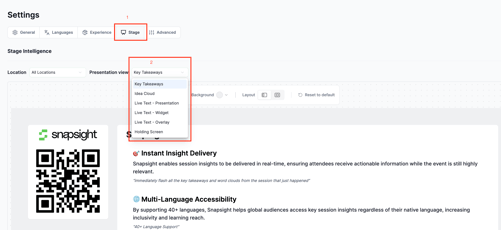
You can modify the following presentation settings:
- Text content
- Text background
- Text size
- Presentation background
Your changes will be reflected in the selected presentation link.