
You can edit session transcripts during or after a session to correct spelling, abbreviations, or phrasing. This ensures your generated insights are accurate and polished.
How to Edit Transcripts
Step 1: Go to Sessions
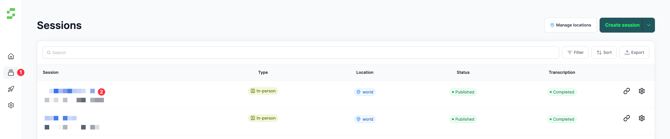
- From the left navigation bar, click Sessions.
- Search for and locate the session you want to update.
Step 2: Open Session Settings
- Next to the session title, click the gear icon.
- This will open the Session Settings pop-up.
Step 3: Open Transcriptions
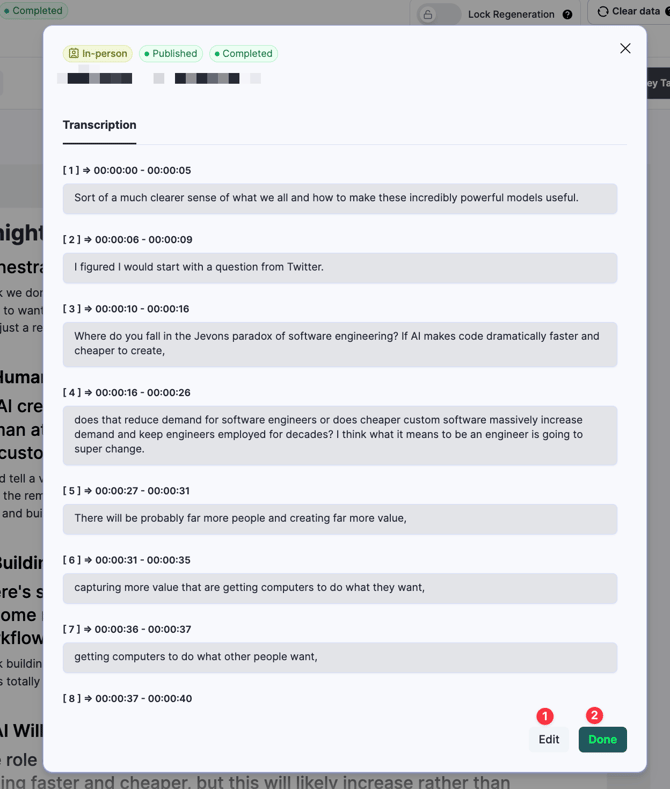
- In the pop-up, navigate to the Transcriptions section.
- You will see the full transcript content.
Step 4: Edit the transcript
- Click Edit (bottom-right of the pop-up).
- Make the required changes to the transcript text.
- Click Save to apply your updates.
Important Note
Editing transcripts may impact the generated:
- Key Takeaways
- Idea Cloud
- Summary
If you want to prevent regeneration of these insights after editing transcripts, make sure the session content is locked (using the Save & Lock option in the respective sections).
Need Help?
If you face any issues while editing transcripts, contact the Customer Success team at cs@snapsight.com