
After the session ends, Snapsight automatically generates a summary for that session. Within Session Management, you have the option to edit or refine this summary. If needed, you can update the Snapsight-generated summary accordingly.
Access the Session Summary
- Click on the session title to open the session details
- Navigate through the available sections:
- Key Takeaways
- Idea Cloud
- Summary
- Transcripts
Edit the Summary
- Go to the Summary section
- Click the Edit Summary button (located next to Resources)
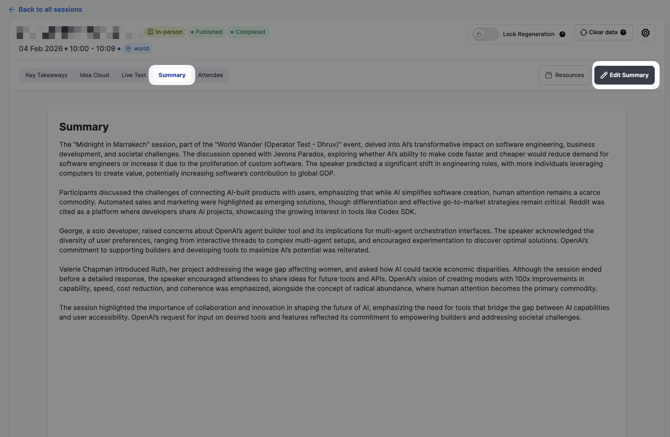
- A popup window will appear with two panels:
- Editor – Make your changes here
- Preview – See your changes in real-time
Language Options
If you need to edit the summary in a specific language, select your preferred language from the dropdown menu within the Editor panel.
Save Your Changes
After editing, you have two save options:
- Save – Saves your edits while allowing Snapsight to regenerate the summary if new transcripts are added to the session
- Save and Lock – Saves your edits permanently and prevents Snapsight from generating a new version, even if additional transcripts are added
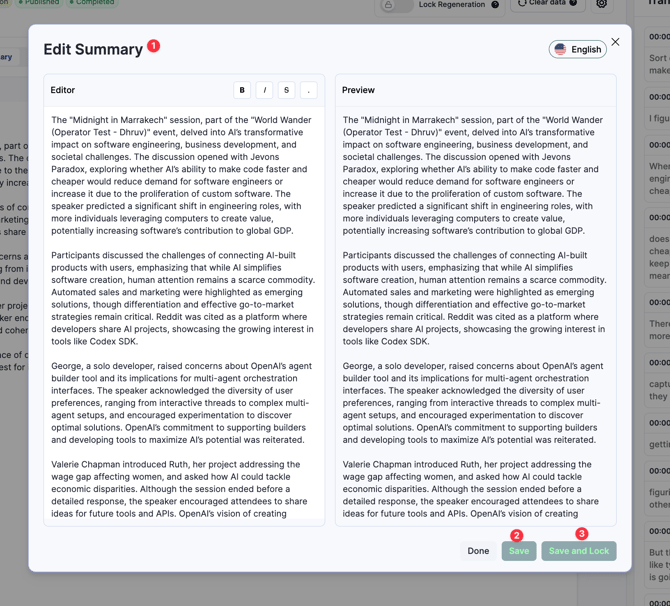
Your changes will be applied immediately after selecting either option.
Need help? Contact our support team at cs@snapsight.com