
After a session ends, Snapsight automatically generates Idea Cloud. If you need to refine or correct them, you can edit the content and optionally lock regeneration to prevent future updates.
How to Edit Idea Cloud
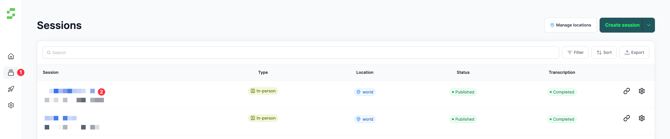
Step 1: Go to Sessions
- From the left navigation bar, click Sessions.
- Locate the session you want to edit.
Step 2: Open session details
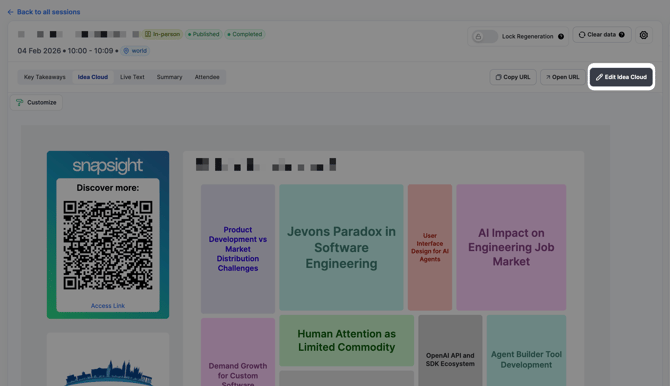
- Click the session title to open the session management page.
- Find the Idea Cloud section.
Step 3: Edit Idea Cloud
- Click Edit Idea Cloud.
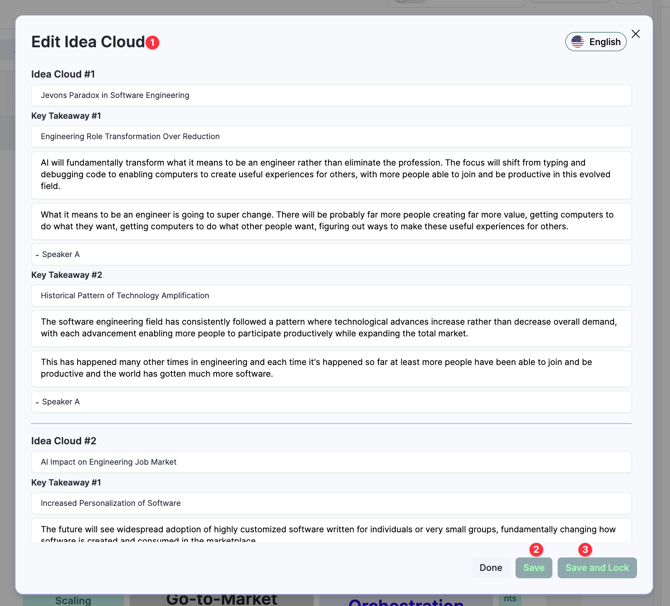
- A pop-up editor will appear.
- Update the content as required.
If you need to make edits in a specific language, you can do so using the language option available within the popup. Simply switch to your desired language to edit the takeaways in that language.
Step 5: Save your changes
After editing, choose one of the following options:
-
Save
Saves your edits. Snapsight may regenerate updated idea cloud if new transcripts or content are added later.
-
Save & Lock
Saves your edits and locks regeneration, preventing any new Idea Cloud from being generated for that session.
Tip: Use Save & Lock if your edits are final and you do not want any further automatic updates.