
The Branding feature allows event organizers to customize Snapsight’s presentation links/content to match their event branding. This ensures a consistent and professional look when sharing or displaying session outputs to attendees.
Snapsight presentation content includes:
- Key Takeaways
- Idea Cloud
- Live Text
- Presentation
- Widget
- Overlay
Organizers can project or present these outputs during or after a session, enabling attendees to view real-time insights and session highlights on screen.
How to apply branding
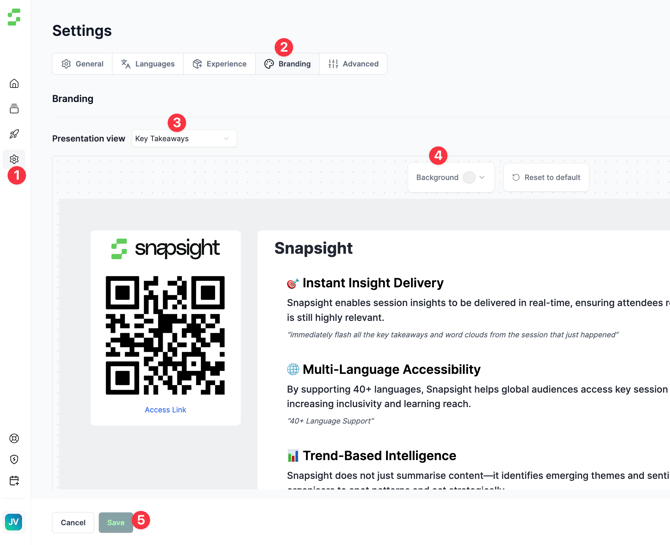
- Open Settings
- From the left navigation bar, click the Gear icon (Settings).
- Navigate to Branding
- In Settings, find the Branding section.
- Click Branding to view available branding controls.
- Select the content type to brand
- Choose which presentation content type you want to style (e.g., Live Text, Overlay, Key Takeaways, etc.).
- Configure branding options
- Adjust the available settings such as:
- Background
- Text color
- Text background
- Content positioning / placement
- Text Size
- Other styling options shown in the branding panel
- Adjust the available settings such as:
- Save your changes
- Click Save to apply the branding updates.
Need help? Contact our support team at cs@snapsight.com.