
Snapsight captures clean audio directly from the venue’s AV system to generate real-time transcriptions, summaries, and insights during live sessions.
To ensure accurate results, proper AV setup is essential. This guide explains how to set up audio, devices, and session connections for successful live summarisation.
Overview
Snapsight requires a direct audio feed from stage microphones.
Important setup principles:
- Always use direct audio from AV mixer
- Do not rely on laptop or webcam microphones
- Each session room must have a dedicated laptop
Requirements for Each Session Room
For every location (e.g., Main Stage, Breakout Room), the event organiser must provide:
1. Dedicated Laptop
- Stable internet connection (WiFi or LAN)
- Power supply
- Modern browser (Chrome recommended)
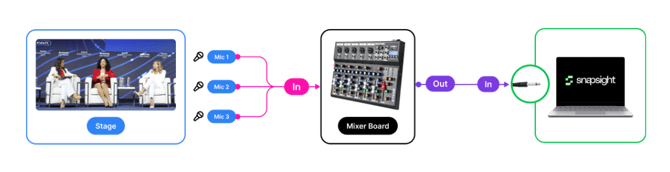
2. Audio Feed from AV Mixer
- Provided by the venue AV team
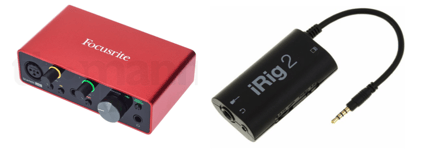
- Connected using an audio interface or adapter such as:
- Focusrite Scarlett
- iRig2
- USB audio interface
- Any compatible AV audio adapter
AV Setup Instructions
Step 1: Connect Audio Feed to Laptop
- Take the audio output from the venue mixer (same feed used for recording/streaming).
- Connect it to the laptop using an audio interface or USB adapter.
- Plug the interface into the laptop.
Important: Use a clean stage microphone feed, not ambient room sound.
Step 2: Open Snapsight Audio Feed Link
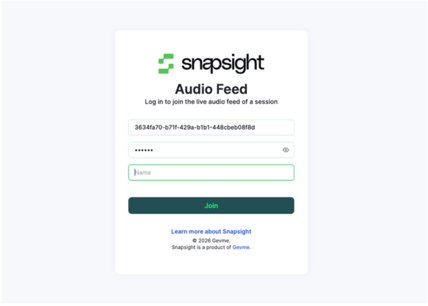
- On the laptop, open the Snapsight Audio Feed Link.
- Provided by the organiser or Snapsight team
- Or accessed from the Snapsight project account
- The link already contains:
- Location ID
- Passcode
- Enter any name (e.g., Main Stage Laptop).
- If multiple rooms are available, select the correct location.
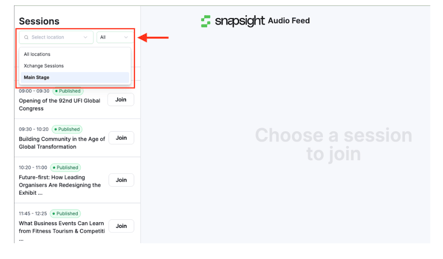
2. Select the scheduled session to join.
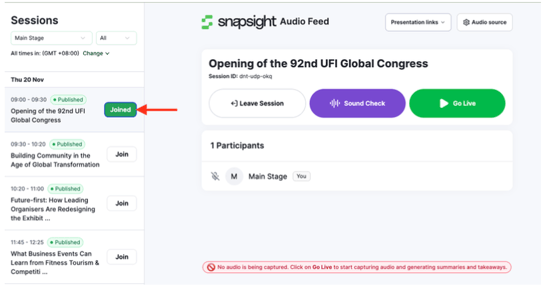
Step 3: Select Audio Source
After joining the session:
- Click Audio Source
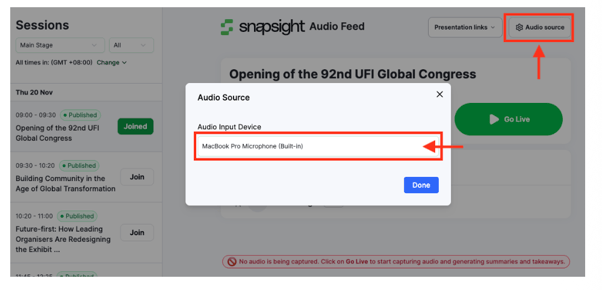
- Select the connected audio interface device (e.g., USB Audio Device, Focusrite, iRig2)
- Confirm selection
Do NOT select:
- Built-in microphone
- Webcam microphone
Step 4: Run Sound Check
- Click Sound Check
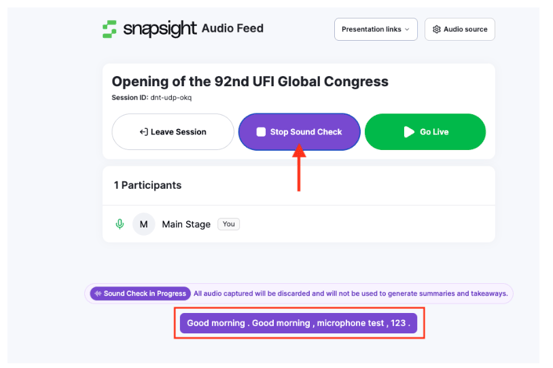
- Ask a person to speak into the stage microphone
- Confirm:
- Live transcription is visible
- Text appears clearly and accurately
Language Configuration
Snapsight transcribes based on the selected session language.
Example:
- If session language = English
- Speaker must speak in English
If the spoken language and configured language do not match, transcription may appear incorrect.
Always verify the session language before going live.
Going Live
Once setup and sound check are complete:
- Wait for the scheduled session time
- 3–5 minutes before session start, click Go Live
Snapsight will begin capturing and generating real-time insights.
Switching Between Sessions
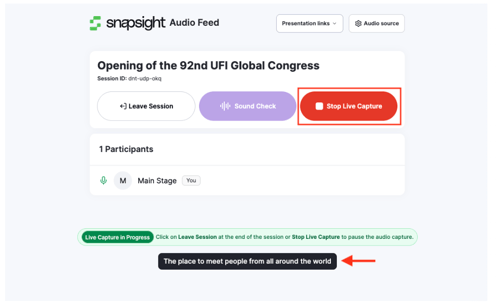
When one session ends and another begins:
- Click Leave for the concluded session
- Click Join on the next session
- Confirm switching when prompted
- Ensure correct session is selected
- Click Go Live again for the next session
AV Team Quick Checklist
Before each session, confirm:
- Dedicated laptop ready
- Stable internet connection
- Direct audio feed from mixer
- Correct audio source selected
- Sound check completed
- Language verified
- “Go Live” clicked before session start