
Once your project setup is complete, you can access presentation links for each session through multiple locations within the platform.
Option 1: Access Presentation Links from a Session
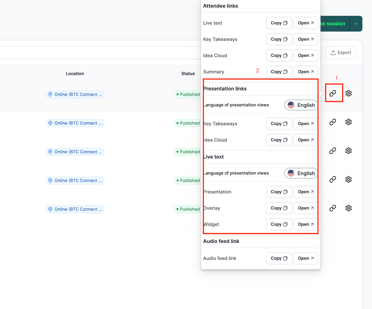
- Navigate to the required session.
- Click the Settings icon located on the right side of the session.
- Select Links.
You will find presentation links for the following content types:
- Key Takeaways
- Idea Cloud
- Live Text
- Live Text Presentation
- Live Text Overlay
- Live Text Widget
Copy the required link and open it on the presentation screen, TV, or monitor for that specific session.
You can also retrieve presentation links from the Deployments page.
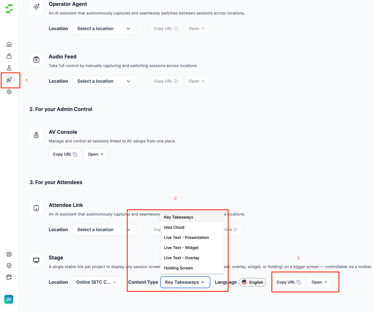
- Open the project.
- From the left-side navigation menu, select Deployments.
- Scroll down to the Stage section.
- Select the required Location, Room, or Stage.
- Choose the required Content Type, such as:
- Key Takeaways
- Idea Cloud
- Live Text Presentation
- Live Text Widget
- Live Text Overlay
- Holding Screen
- Select the desired presentation Language.
- Copy the generated URL.
- Open the URL on the display device where the presentation will be shown.
Presentation links are also available from the Audio Feed page, allowing you to quickly retrieve and share the required presentation URLs.